













 Shopping guides
 Help
Help
 Log in

How to position your computer monitor: the perfect height
Article index
Positioning your monitor properly is not a whim: it will make the difference between ending the day with a strained neck or a relaxed back. Adjusting height, distance and tilt takes just a few minutes and prevents discomfort in the long run. This quick guide shows you how to achieve a comfortable posture and how to set up a workstation with one or two monitors.
The importance of positioning the screen or screens correctly
If the monitor is too high, you look upwards and compress the cervical area, and if it is too low, you hunch your back and push your head forward. Both postures cause strain in the shoulders, neck and upper back. An incorrect distance also forces you to strain your eyes: either you squint, or you lean in without realising it.
Positioning the screen properly improves three aspects:
- Posture: back supported, shoulders loose and neck neutral.
- Visual focus: sharp text at a comfortable distance, with less eye fatigue.
- Work rhythm: you move less and concentrate better.
Remember that monitor placement works as a team with the rest of the workstation: chair height, keyboard and mouse position, and lighting. To take care of your eyes, the “20–20–20” rule helps: every 20 minutes, look at something 6 metres away for 20 seconds.
.jpg)
What height to position your computer screen at
Sit with your back supported, feet on the floor or on a footrest, shoulders relaxed and elbows at 90°. From there:
- Height: your line of sight should fall on the top edge of the monitor or slightly below. The centre of the screen should sit a little below your eyes.
- Distance: an arm's length away, normally between 50 and 70 cm. Large monitors (27” or more) are best placed a little further away.
- Tilt: 10–20° backwards, to reduce glare and keep the viewing surface uniform.
- Centre: the monitor should be aligned with the centre of your body and keyboard. Even turning it a few degrees can cause neck twisting.
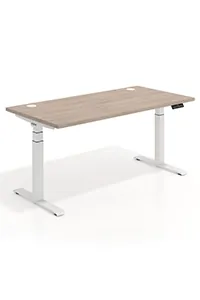
If you wear progressive glasses, lower the screen a little and increase the tilt so you can look comfortably through the lower part of the lenses. On adjustable desks, apply the same rules: top edges at eye level, an arm's length distance and elbows close to 90°. Adjust the desk ergonomically, and if you like, a gaming desk makes precise adjustments easier.
How to achieve it step by step
- Sit naturally, with your back supported.
- Place the monitor in front of you and adjust the top edge to eye level.
- Tilt it 10–20° backwards and keep it an arm's length away.
- Raise the screen if needed using a VESA arm, a stand or sturdy books.
- Adjust the text size and scale — a larger font is better than a forward-leaning neck.
- Avoid glare by moving the screen or the light source.
The relationship with the chair and the desk
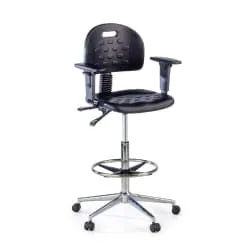
Good monitor positioning only works with a suitable chair and desk. For the chair, it is important to choose the perfect chair for your height, to check the size of the office chair and to opt for a comfortable model, whether an office or study chair. Adjusting the seat height, depth and backrest helps maintain the neutral posture that the monitor requires.
%20(1).jpg)
How to position two computer screens
With two screens, the key is for the neck to move within a comfortable range, without repeated extreme turns.
- Primary and secondary monitor (80/20): primary centred following the earlier rules, secondary next to it, slightly angled open (15–30°) and at the same height.
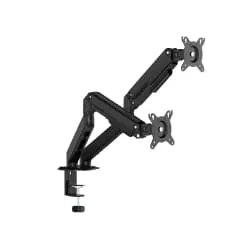
- Two identical monitors (50/50): position them forming a slight “V”, top edges at the same height and an arm's length away. A dual arm allows fine adjustments.
- Laptop + external monitor: raise the laptop so that its top edge is level with the monitor, use it as the secondary screen and add an external keyboard and mouse to avoid hunching.
Software settings also help: match the text scale, place the taskbar on the primary monitor and set up shortcuts to move windows easily.
Express checklist for two screens
- Top edges at the same height
- Bezel join centred (50/50) or primary monitor centred (80/20)
- An arm's length distance
- A 15–30° angle for the secondary screen
- Text legible without leaning in
By following these guidelines, your posture will be more ergonomic, your eyes will rest better and your working day will be more comfortable and productive.


