






















 Shopping guides
 Help
Help
 Log in

Learn how to work with two monitors
Article index
More and more people are looking for how to work with two monitors at once, and it is no coincidence. Using a dual monitor setup can completely change the way you work, boosting productivity and reducing the time you waste switching between windows or searching for files.
Whether it is for office tasks, programming, design, video editing or even studying, having two monitors lets you organise information better and work in a much smoother way. And yes, it also shows in something as simple as comfort: fewer clicks, less visual chaos and more control.
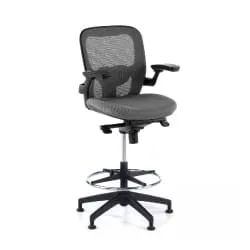
That said, to get the most out of it, connecting another monitor is not enough. You have to set it up properly, adapt it to your workspace (this is where things like a good ergonomic desk chair and correct posture come into play) and, above all, change some habits so that your workflow really improves. Let us go step by step.
.jpg)
How to set up 2 monitors on Windows and Mac
The first thing is to understand how to configure the monitors correctly. Do not worry, it is easier than it seems, and in just a few minutes you can have an extended desktop that completely changes the way you work.
That said, it is not just about plugging in the second monitor: a good configuration makes the difference between “having two monitors” and actually working better.
Setting up two monitors on Windows
On Windows, the process is fairly straightforward and automatic in most cases.
Step by step:
- Connect the second monitor to the computer
Use HDMI, DisplayPort, USB-C or the appropriate adapter for your equipment. - Right-click on the desktop
This opens the quick personalisation menu. - Select “Display settings”
Here you will see both screens represented in a visual diagram. - Adjust the display mode
In the “Multiple displays” section you can choose how you want to use them:
- Duplicate these displays: shows the same on both (useful for presentations, but not very practical for working)
- Extend these displays: turns both into a single wide desktop
- Show only on one screen: disables one of them
The most recommended option is “Extend these displays”, as it lets you work with each monitor independently, as if you had a much larger desktop.
Recommended settings on Windows
To improve the experience even more, you can:
- Drag the screens in the diagram so they match their actual position on your desk
- Choose which will be the main screen (where the taskbar appears)
- Adjust the scale if one monitor looks bigger or smaller than the other
- Set the optimal resolution of each screen
A small adjustment here can make everything feel much more natural in daily use.
Setting up two monitors on Mac
On Mac the process is just as simple, but with a slightly different and very visual interface.
Step by step:
- Connect the second monitor
Through USB-C, Thunderbolt, HDMI or a compatible adapter. - Go to “System Settings” (or “System Preferences” in earlier versions)
- Enter “Displays”
Here you will see both screens detected automatically. - Access the “Arrangement” option
From there you can organise how they are physically placed.
Key setting: the arrangement of the screens
This point is very important. On Mac you can drag the monitors on screen so they match exactly their real position on your desk (left, right, height, etc.).
Doing this correctly is key so that the cursor movement is natural and you do not have to “guess” where the pointer will appear.
Useful options on Mac
- Define the main screen by dragging the menu bar
- Enable or disable the use of each monitor
- Adjust resolution and scaling as needed
- Set up independent spaces (Mission Control)
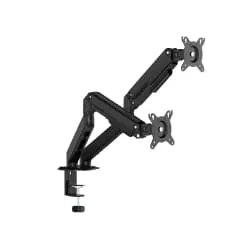
In addition, using a monitor stand can help you adjust the height and improve ergonomics.
And do not forget something key: working comfortably also depends on the environment, such as having a quality desk with enough space.
.jpg)
Tricks to work with two monitors at once and be more efficient
Once you have everything set up, the really important part comes: learning to use two monitors intelligently. Because yes, having more space helps, but the real productivity improvement appears when you know how to organise your workflow.
If you want to improve your performance even more, you can complement these tips with focus at work techniques. Below you also have some tricks that make the difference.
1. Assign a function to each screen
One of the most common mistakes is using both screens “for everything” with no criteria. Instead, the ideal is to give each one a fixed role.
For example:
- Main screen: active work (writing, designing, programming, editing)
- Secondary screen: support (email, browser, documentation, chats)
2. Avoid duplicating unnecessary content
Duplicating the screen can make sense in very specific cases (presentations or demonstrations), but not for working.
When you duplicate, you are seeing the same thing twice, which adds no value. On the other hand, by extending the screen, you can distribute information and reduce window chaos.
3. Place the main screen in front of you
The screen where you do most of the work should be centred in front of you. The secondary one can go to one side, slightly tilted if necessary.
This helps to:
- Reduce neck strain
- Improve posture
- Avoid repetitive head movements
4. Adjust the text size and resolution
Each monitor can have different settings. Adapting them improves visual comfort. Adjust:
- Native resolution of each screen
- System scale (text and icons)
- Font size in applications
5. Use keyboard shortcuts
Shortcuts are one of the simplest ways to save time. With them you can move windows between screens, quickly maximise or split windows, switch applications without using the mouse…
6. Keep digital order
Having more space does not mean filling everything without control. If each screen has a clear function, your mind also works with more clarity. Visual clutter generates distractions, even if you have plenty of space available.
7. Take care of lighting and brightness
Both screens should have similar brightness to avoid eye strain.
8. Rest your eyes regularly
Working with two monitors can make you spend more time in front of the computer. Take breaks to avoid fatigue.
Working with two monitors can change your productivity
Adding a second monitor is one of the simplest ways to improve your daily performance. Not only do you work faster, but you also reduce errors and feel more comfortable. That said, the key is to use it well: a good configuration, a suitable environment and efficient habits make the difference.
If you have not tried it yet, it may be the change your way of working needs.


